
The ALADIN settings
You can use the Settings window to adapt ALADIN to suit the requirements of different diagnostic tasks. This includes communication with the controllers, the language, the display and setting up your access authorization.
How to open the ALADIN settings
Use the "Settings" button to access the ALADIN settings directly in the ALADIN main window.

Saving settings
Save by using the diskette symbol top right in the menu bar.

Reset settings
If you want to reset the ALADIN settings to the factory defaults, use the "Settings - Reset all settings" menu.

Language settings
ALADIN differentiates between the user language for the program and the language for the program help. The program help is only available in German and English. The program language is translated into several languages.
After the installation, ALADIN determines the Windows system language and attempts to set a matching program language. You can, of course, switch between all the available languages.

The language is set using the "User language - Language for program" or "Language for help" menu items.
Configuring the ECU Report
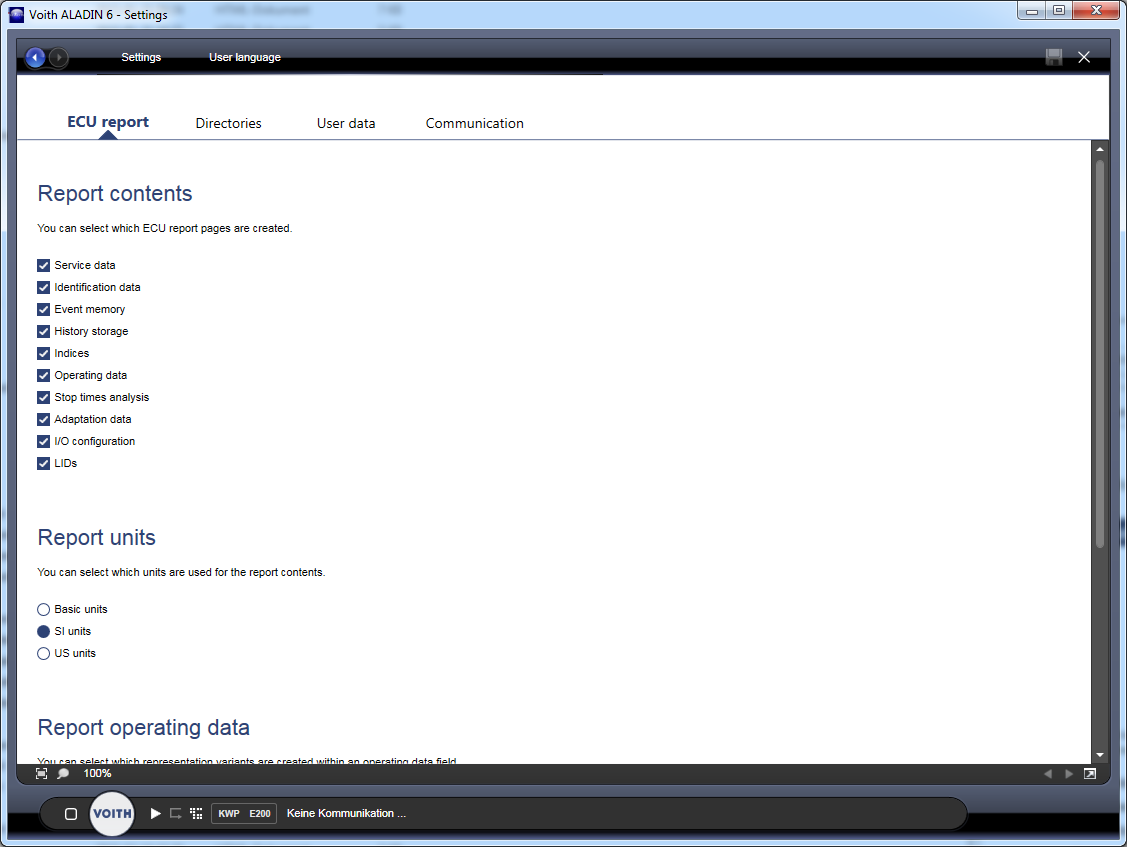
You can configure the display in the ECU Report on the ECU Report tab.
The ECU Report comprises a number of separate chapters. Here you can set which chapters are generated and displayed. Only the chapters contained in your access authorization can be selected.

This setting primarily relates to the operating data in the report. Displays, e.g. on the transmission monitor, are not affected by this. You can choose between:
- Base units - All data are displayed as originally recorded by the controller.
- SI units - SI units based on the metric system.
- US units - US units based on the Anglo-American system and still used almost exclusively in the USA today.

The operating data in the report can contain several columns for displaying the values:
- Raw value - Accumulated by the controller in this database. Usual here are frequencies for simple counts such as number of revolutions on the output shaft and periods as frequency x 100 ms.
- Field value total - The field value total is the total of all operating data fields up to and including this field. Example: The DIWA speed profile operating data contains the time period columns in the speed from less than 2.5 km/h to greater than 100 km/h in 2.5 km/h steps. The field value total in the 20 km/h column contains the totals of all times from less than 2.5 km/h up to and including 20 km/h.
- Percentage total - The percentage total is the percentage of the field value total with regard to the entire operating date.
- Relative amount - The operating data field within an operating date with the largest numeric value is defined as 100%. The relative amount is the percentage of an operating data field with regard to the field defined as 100%.
- Absolute amount - The absolute amount is the percentage of an operating data field with regard to the entire operating date.

The event memory in the controller differentiates between events with 8 different priorities. In the default setting, ALADIN only displays priority 1, 2 and 7 events. All other events are filtered.
This filtering refers to all event memory displays in ALADIN. The online monitor is also included.
You can set whether the filter is active or not, and configure the filter using the corresponding checkboxes.

LOR (Limited Operational Range) is a parameter for how far speeds are lowered by the SensoTop switching program. The parameter is calculated in a specific speed / torque range that can be set here.
The LOR is displayed in the Service Report chapter

In the ALADIN report you can send ECU files directly to an e-mail recipient. Here you can specify which recipient is entered as the default.
ALADIN directories
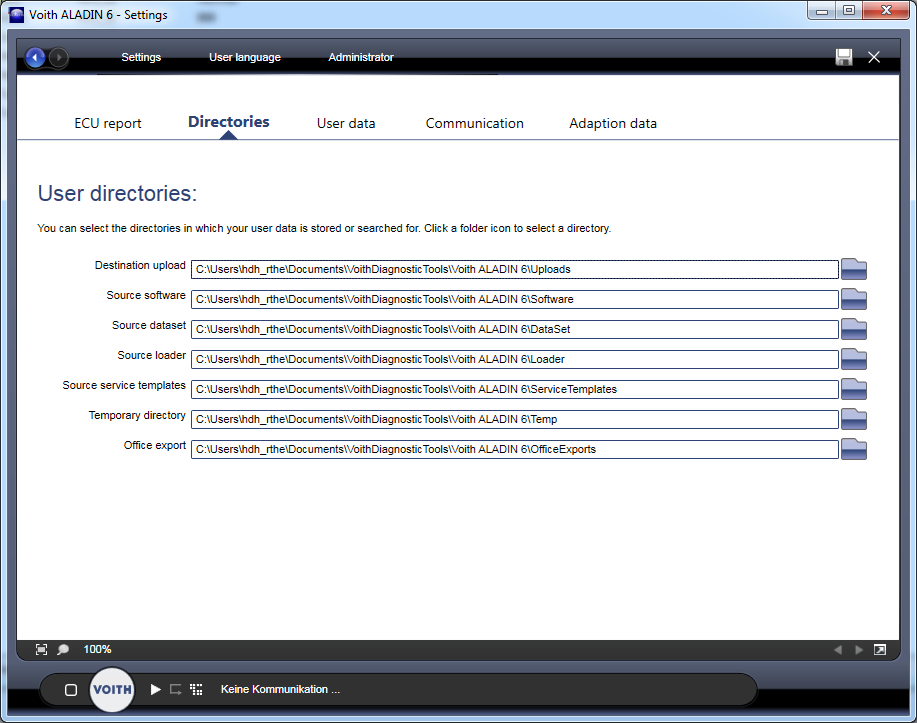
ALADIN needs a number of different files in order to operate correctly. These files are basically held in 3 storage locations.
- Program Files (x86) - All program files installed with ALADIN are located here. The majority of users do not have write rights in this folder. Changes to the installation path can cause ALADIN to stop working and should only be made if directly instructed to do so. The path is:
C:\Program Files (x86)\VOITHDiagnosticTools\Voith ALADIN 6
If you obtained your ALADIN from Voith IT, the important Hex and VDD files can be found in the "Resources\Control" subfolder. - Program Data - All application data that must be available for all users on the computer are located here. For example, ALADIN can be expanded with new EventTab files or EOL configurations in this folder without a program update being required. The path is:
C:\Program Data(x86)\VOITHDiagnosticTools\Voith ALADIN 6 - User Data - Your personal ALADIN files are located in this folder. This includes the ECU files, Flash Container and templates used. Some of these folders can generally be changed and are offered here for configuration. Please make sure you have the corresponding write rights.
User data and access authorization
You can activate your ALADIN access authorization on the User Data tab. This determines which diagnostics functions are available to you. You can also personalize ALADIN by configuring a personal background image or playing audible signals.
ALADIN recognizes two variants of access authorization. An access code that sets the user to a specific user level and license files (*.ALF files).
A user level contains a specific set of enabled functions. Individual functions can be enabled in ALADIN with a license file. It is possible to activate multiple license files. License files can also be combined with an access code. A license file can be time-limited.
License files and access codes are charged to a specific e-mail address. Only a valid combination of e-mail address and code, or license enables the functions.
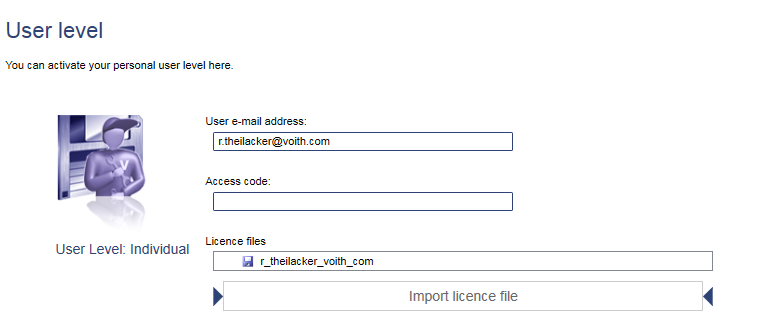
To activate an access code, enter your e-mail address and then your access code.
To activate a license file, enter your e-mail address and press the "Import licence file" button. An "Open" dialog appears. Navigate to your license file.
After successful activation, your user level, or the imported license file, and the "Individual" user level are displayed.
If you need an access authorization, please contact your Key Account.
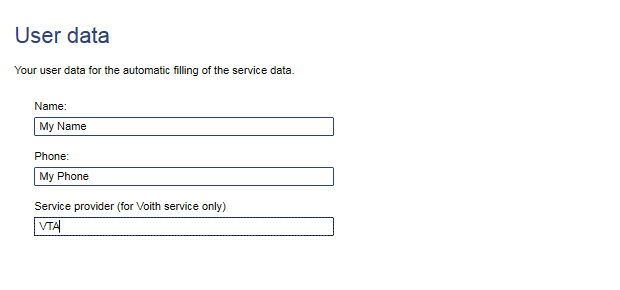
If you are authorized to enter service data in the controller, the User Data area is displayed. You can store your VG, phone number and your name for the service data here. This information can be called up in the service data.
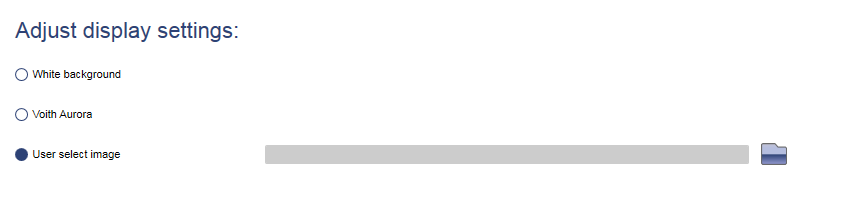
In addition to the white default background for the ALADIN main window, you can also store a moving "Voith Aurora" background, or your own background image.
If you activate the sounds, ALADIN plays a horn sound after long communication tasks such as upload or download. Alternately, you can also play an individual sound. To do so, assign a "Wav" file under "Individual sound".

Communication
On this tab the communication with controllers is configured. This includes your diagnostics interface, Baud rates and protocols used.
The communications protocol is the language which ALADIN and the transmission controller use to "talk". The different protocols also require a different cabling topology. For example, the UDS protocol is transferred on the CAN bus, while the KWP2000 protocol is set up on its own K-Line.
The different protocols therefore also require corresponding interfaces. If your configured interface does not support a protocol, you can deactivate it and it will be grayed out.
- KWP 2000 protocol - This protocol is activated by default in ALADIN and is supported by every Voith interface. KWP 2000 is used by DIWA.5, DIWA.3 with E310, DIWAhybrid and VIAB controllers.
- ISO 9141 - This protocol is used by DIWA.3 with E200 controller
- UDS - This protocol is used by DIWA.6
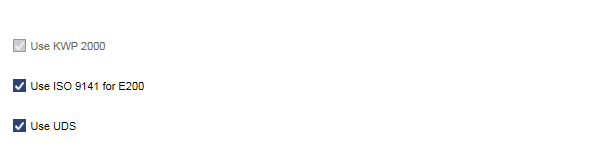
If you have activated more than one protocol, ALADIN will search for controllers on all activated protocols when setting up the communication. In this case, you can specify the order of the search.

All activated protocols are displayed on the Communications bar. If you click on one of the protocols, ALADIN searches directly for a controller with this protocol. The currently used protocol has a blue background.

Select the diagnostics interface you want to use. Please read the associated help file for the installation of a diagnostics interface.
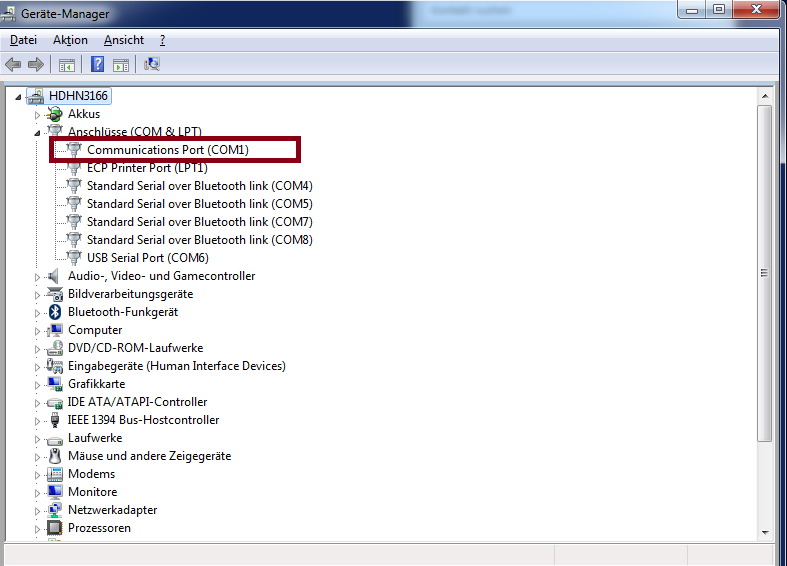
- Serial RS 232 Interface - This interface is connected directly to the serial connection of your computer. The KWP 2000 and ISO 9141 protocols are supported. The COM port of the serial connection is managed by the operating system or PC Bios. You can determine the COM Port in the Windows Device Manager.
- BlueCom Interface - This interface supports the KWP 2000 and ISO 9141 protocols. It can be used in the cable-less operating modes via Bluetooth and cable-connected via USB. In both cases, a COM port is created during the installation of Windows. They are not identical for both operating modes.
You can set the COM port on the Windows Control Panel - Devices and Printers. When connected by cable, the BlueCom is displayed as FT232 USB Uart. With Bluetooth connection as Voith BlueCom. Right-click to access the Properties menu of the interface. The allocated COM port is displayed on the "Hardware" tab.

- USB Interface (Samtec) - This interface supports the KWP 2000 protocol.
- SmartCase Interface - This interface supports the KWP 2000, ISO 9141, and UDS protocols. It can be operated cable-connected via USB or cable-less via WLAN.
You can configure whether ECU files are compressed or not. The space saving here is approx. 80%. This is particularly useful if you need to archive large amounts of ECU files or send them by e-mail.
The Activate Multi-ECU function is specially for DIWAhybrid vehicles. Here, the upload of the M300 and the E300.1 are created together and stored in an ECU file.
The configuration of the separator is used for your personal archiving of ECU files. The so-called "Hungarian Notation" with underlines as separators makes the names easier to read, but does not contain spaces. The new variant with "Space Hyphen Space" is easier to search and sort, but can lead to problems with operating systems older than Windows 7.

The Trace function can be activated here. This function requires many resources. Only switch this on if you need to record the communication between ALADIN and the controller.


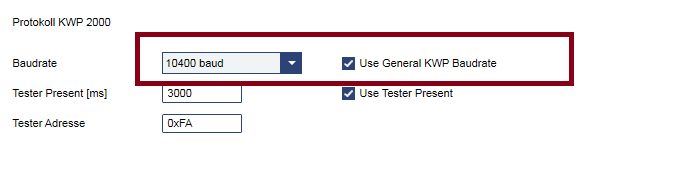
You can adapt the baud rate for the KWP 2000 protocol. The maximum baud rate depends on the K-Line cable length between the diagnostics interface and controller. Please note that several meters of cable can also be installed in the vehicle from the diagnostics socket up to the controller.
You can test various baud rates in order to reach the maximum baud rate in the respective vehicle. Basically the longer the cable length the lower the baud rate must be.
If the "Use General KWP Baud rate" checkbox is set, the same baud rate is always used for each controller. If you deactivate the "Use General KWP Baud rate" function, you must configure the baud rates separately for each controller.
All other options in this area should only be changed if directly instructed to do so. This is done in the KWP 200 settings area for controllers.
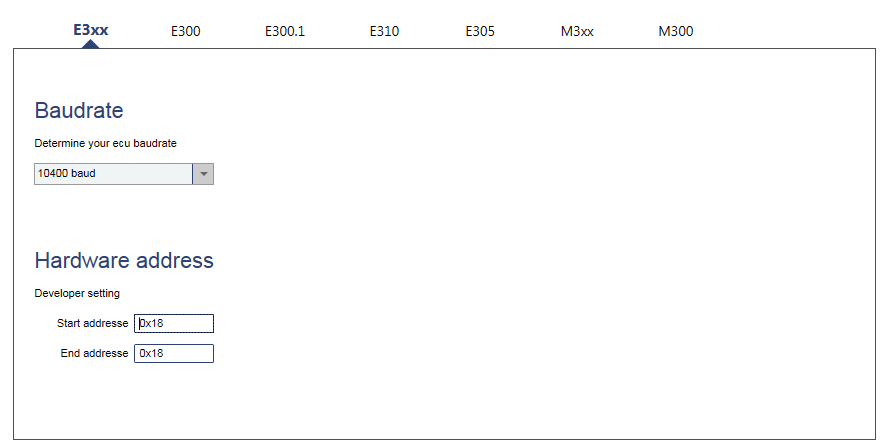
The KWP 2000 settings for the various controllers compatible with ALADIN can be made on these tabs. In particular, this is the baud rate if you do not use the "Use General KWP Baud rate" function in the KWP 2000 protocol area.
All other options should only be changed if directly instructed to do so.
The compatible KWP 2000 controllers are:
- E3xx - This is a controller that does not contain any software and identification data. This variant arises if a software update has not been fully completed, for example.
- E300 - Controller for the DIWA.5 transmission type
- E300.1 - Controller for the DIWA.5 and DIWA.6 transmission types
- E310 - Controller for the DIWA.3 transmission type
- E305 - Controller for VIAB
- M3xx - Controller for the DIWAhybrid inverter. The controller does not contain any software and identification data. This variant arises if a software update has not been fully completed, for example.
- M300 - Controller for the DIWAhybrid inverter
Adaptation data
The warning limits for adaptation data in the ECU report can be configured on this tab. PA and PR pressure limits for amber and red warnings are specified for this.
These limits are independent of shifts and the engine torque or speed class.

In the Offsets area for traffic light functions you can see whether the traffic light function is activated for a specific shift, and engine torque, or speed class. Active adaptation values are shown with blue fields, and an additional limit can be activated. Deactivated adaptation values are shown in gray.

If you set an offset for a specific adaptation value, then the following applies:
Limit Value = Limit + Offset