Voith EOL Manager
The Voith EOL Manager is used for the display and configuration of EOL parameters. EOL is supported by DIWA transmission control units with software version E300.1-D5.8.0.0 and higher. For further information on EOL, please see: EOL Basics.
 |
How to open the EOL Manager |
The EOL symbol has been created automatically on your desktop during the installation. Double-click the desktop symbol
to start the program.
Alternatively, you can open the EOL Manager using the Start menu. To do so, click: Start > Programs > Voith Diagnostic Tools > Voith EOL.
When the program is started, communication with the transmission control unit is started automatically and all EOL parameters are read out.
|
|
The user interface: |
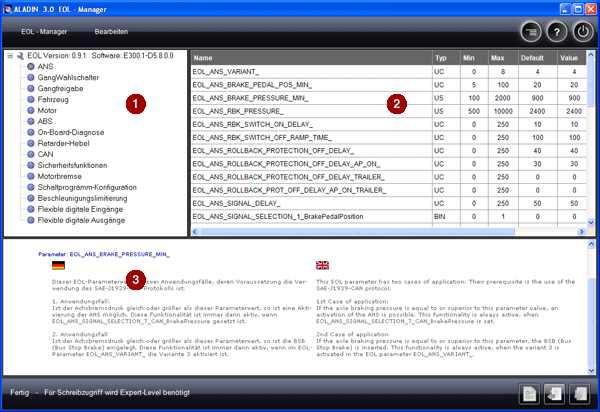
In addition to the toolbar and the status bar, the EOL Manager has three areas.
The EOL group tree. All groups that are available are displayed in this area. The EOL parameter table. All parameters of a selected group are displayed in this area. The EOL parameter description. The description of a selected parameter is displayed in this area.


|
|
The EOL group tree: |
All EOL groups that are available are displayed here. Click the group to display all parameters of a group in the parameter table. The status of each group is displayed by the icon preceding the group name.
Group symbols:
Symbol Description The group is available and can be parameterized. The group has been changed. The changes have not been saved in the control unit yet. The group is not available in this transmission unit software version. The group has been selected. The corresponding parameters are displayed in the parameter table. The group is locked by the dataset and cannot be changed.
Each group has a tool tip describing the behavior of the group when a new dataset is flashed. This behavior is determined by the two dataset parameters "EOL_ENABLE_EOL_SEL" and "EOL_ENABLE_OVERWRITE_BY_DS_SEL". The following variants are possible:
The EOL parameter group cannot be parameterized and will not be overwritten when the dataset is loaded.
The initial dataset is always the valid one.
The EOL parameter group cannot be parameterized and will be overwritten when the dataset is loaded.
The dataset that has been set is always the valid one.
The EOL parameter group can be parameterized and will not be overwritten when the dataset is loaded.
The EOL parameters are retained.
The EOL parameter group can be parameterized, however, it will be overwritten when the dataset is loaded.
The EOL parameters are overwritten by loading the dataset.


|
|
The EOL parameter table: |
The parameter table displays all parameters of a selected EOL group. Here you can change the value of individual parameters. All other information such as Min, Max and Default cannot be changed.
You need the 'Service' user level (access authorization) or higher for the write rights in the EOL parameters!
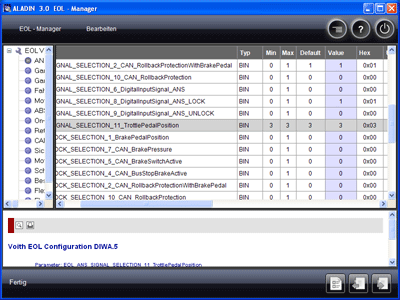
If you have write rights, the Value column will be highlighted in color. Parameters that are not provided in the transmission unit software are greyed out.
Display example:
Each value you enter is checked for compliance with the min/max limits and the data type.
Columns displayed:
Column Description Type Displays the data type of the EOL parameter. Min Displays the minimum value defined in the dataset. Max Displays the maximum value defined in the dataset. Default Displays the value of the default level. Value Displays the current value in decimal notation. Hex Displays the current value in hexadecimal notation. Unit Displays the unit of the value. Resolution Displays the resolution of the value. State Displays the state of the value. (OK, not available, fault identification) Byte Developer information ByteStart Developer information ByteLength Developer information Bit Developer information BitStart Developer information BitLength Developer information Securefunction Developer information ValueChanged Displays whether the value has been changed by the user. Difference Displays whether the value is different from the original dataset.
In the ALADIN Setup, you can configure the columns to be displayed in the EOL Manager. To do so, click: Setup > Report in the ALADIN main window. For further information, please see: Setup.
As an alternative, you can open the Setup via the EOL menu. Click: EOL Manager > Settings.

|
|
The EOL parameter description: |
Displays detailed information on the currently selected EOL parameter. The information contains instructions on which value causes which action in the transmission unit software.
|
|
Save changes of the EOL parameters: |
If you have changed EOL parameters, use this button to save the changes in the control unit.
.
Alternatively, click: Edit > Write to ECU.
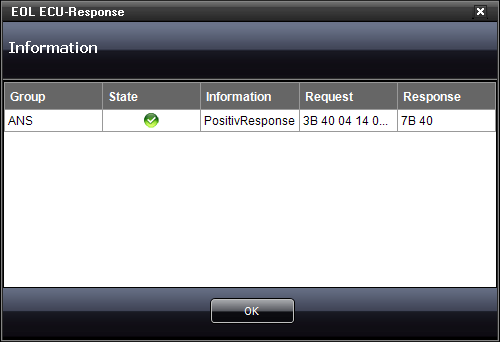
After the write operation is finished, the display shows the EOL groups that have been edited and whether the write operation has been accepted by the control unit.
After each write operation, the new EOL data will be read back from the control unit.
|
|
Read EOL data |
To read EOL data from the control unit, click the
button.
Alternatively, click: Edit > Read from ECU.
Parameter changes that are not saved in the control unit before another read operation is started will not become effective.
|
|
Reset EOL groups |
You can reset all parameters of an EOL group to the default values. This function always has an effect on the values that are currently displayed in the parameter table. To reset the parameters, click the
button.
Alternatively, click: Edit > Reset group.
|
|
Further topics: |
More information on: EOL basics
More information on: Report
More information on: Delete adaptation data
More information on: FAQ
© by Voith Turbo GmbH & Co. KG
send remarks to joachim.ehleiter@voith.com (electronic department)
or r.theilacker@voith.com (electronic department)