Using the search / ALADIN keyword search
Use the Search function to display all topics containing certain words.
 |
How to search for a topic using the Search function: |
- Click Search on top of the navigation pane of the ALADIN program Help.
- Click Search and confirm the safety warning with Go.
- Enter the required terms and click Search.
- Under Search Results , the result list now displays the HTML pages containing the terms searched for.
- Double-click the corresponding entry to display a topic.
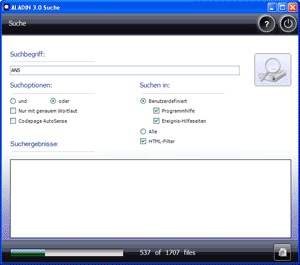
Alternatively, you can open the Search function directly from the desktop. To do so, click the Search symbol on your desktop.
|
|
How to use the search options: |
Option Description and / or If you enter more than one word separated by blanks and the setting is or, the search will yield results containing only one of the words. If the setting is and, the search will yield only topics containing all words that have been entered. whole words only You can use the option whole words only to distinguish according to the roots of the words. If you search for "CAN" with this option, terms such as "CAN bus" or "CAN bus node" will not be found. Codepage AutoSense You can use the option AutoSense to automatically adjust the text coding of the search term to the text coding of the ALADIN Help.
The search function generally makes no capitalization distinction. The search for the term can therefore yields the same results as the search for the term CAN.
|
|
How to use "Search in": |
Before starting a search you can define the ALADIN pages always to be included in the search.
Option Description User-defined You can choose whether the ALADIN Help and / or the event help pages are searched. All The complete ALADIN data is searched. HTML filter Optionally, you can activate a HTML filter. This limits the search to "online texts".
|
|
Further topics: |
More information on: Display topics
More information on: Using the table of contents
More information on: Web browser requirements
More information on: Using the ALADIN main window
More information on: FAQ
© by Voith Turbo GmbH & Co. KG
send remarks to joachim.ehleiter@voith.com (electronic department)
or r.theilacker@voith.com (electronic department)