
Download
The Download function is used to store datasets and/or function software in a transmission controller.
Valid platforms:
- DIWA.3 via E200
- DIWA.3 via E310
- DIWA.5
- DIWA.6 via KWP
- DIWA.6 via UDS (only load an individual hex file)
- VIAB (only load an individual hex file)
- DIWAhybrid E300.1
- DIWAhybrid M300
How to open the download
The download is opened directly by the "Download" button in the ALADIN main window.

Select the Load dataset function in the Download window. The second function - Load Hex file - is only needed in exceptions, e.g. for prototype software.
You are then guided through the download in 3 steps.

Step 1 Identifying the controller
ALADIN first reads the controller information. This makes it possible to decide which datasets can be loaded onto this controller. To do so, select the "Identify" button. You can then select a dataset for this controller.
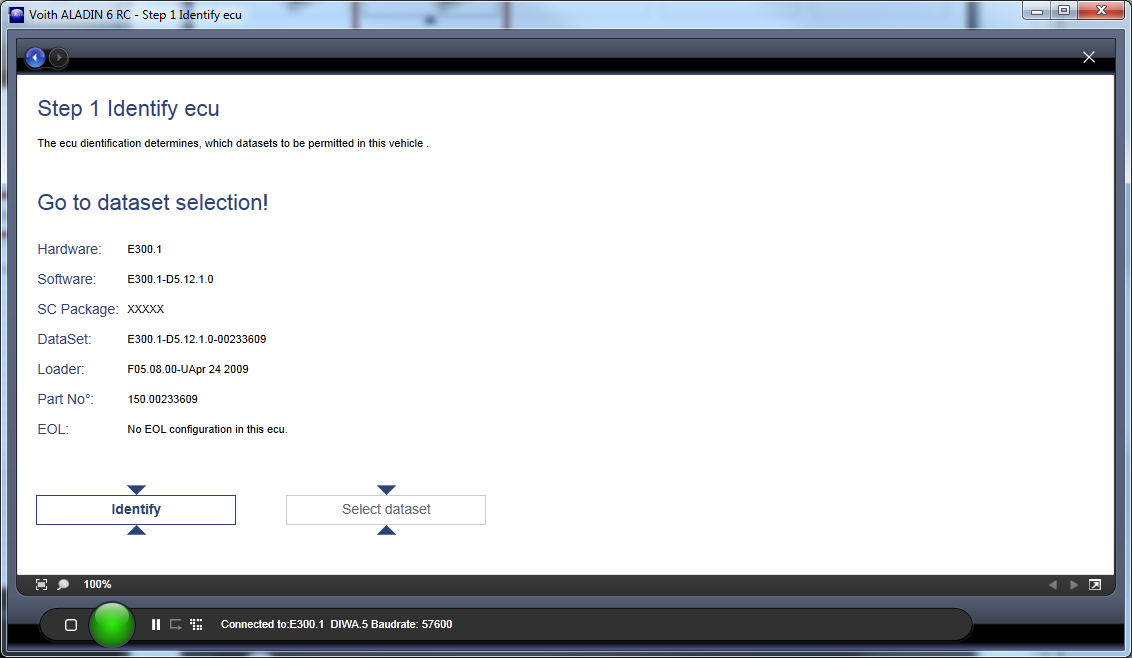
Step 2 Selecting the dataset
To select a dataset, select an AFC file or a dataset using the folder symbol. Your selection undergoes a series of tests. When the dataset has passed all tests, you can start the download process using the "Download" button.
In addition to the systematic testing, the projected vehicle incl. motorization for the selected dataset is displayed on the left side.

Step 3 Confirming the load list
ALADIN has automatically checked which components must be loaded into the controller. Confirm that the controller is to be programmed using the "Download" button.
If ALADIN does not find a required loader or software in the default directories, it must be selected using the blue folder symbol. The Download button cannot be pressed until the load list is complete. The "Force Full Download" checkbox can also be used to cause ALADIN to load all components.

After a successful download, you receive a success message incl. a list of the loaded components.
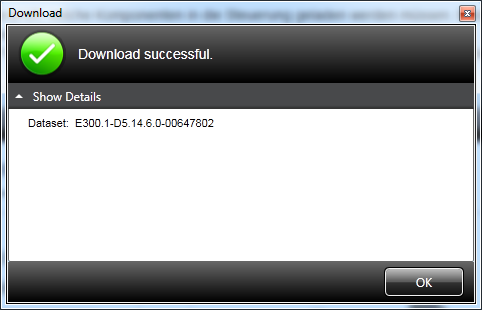
Special case - E200 communication not functioning.
It can happen that the communication with an E200 controller is no longer possible. The cause for this can be an interruption during a download, for example.
In this case, you need the E200 Recovery mode.
The E200 Recovery mode is opened directly using the "Download" button in the ALADIN main window.
Select the E200 Recovery function in the Download window.

Confirm the E200 Recovery mode.

You can now continue with Step 2.