
Operating concept & navigation
ALADIN 6 is divided into 6 main areas.
- Main Area
All diagnostic functions are in this area. - Navigation & Toolbar
You can jump back to previous points using the navigation. Tie toolbar provides additional functions depending on the selected function. - Trace Window
Display of communication commands between ALADIN and a connected ECU. Additional information are displayed on the status of the communication layer and the corresponding parameters. - Communication
Communication with connected controllers can be started and stopped in this area. - Help system
The help system provides additional instructions for ALADIN.

The main area, the trace window and the help system can be scaled as required to each other. The trace window and the help system can also be completely hidden, however.
The windows are scaled using the buttons above the communication bar, by dragging with the left mouse key pressed on the window borders or by various shortcuts. The following shortcuts are available:
- CTRL + H Hide/show the help system
- CTRL + T Hide/show the Trace window
- CTRL + Up/down arrows scale the Trace window
- CTRL + Left/right arrows scale the Help window

You can zoom the display in ALADIN to the required size. The Zoom menu or alternatively the CTRL + and CTRL - shortcuts are used for this

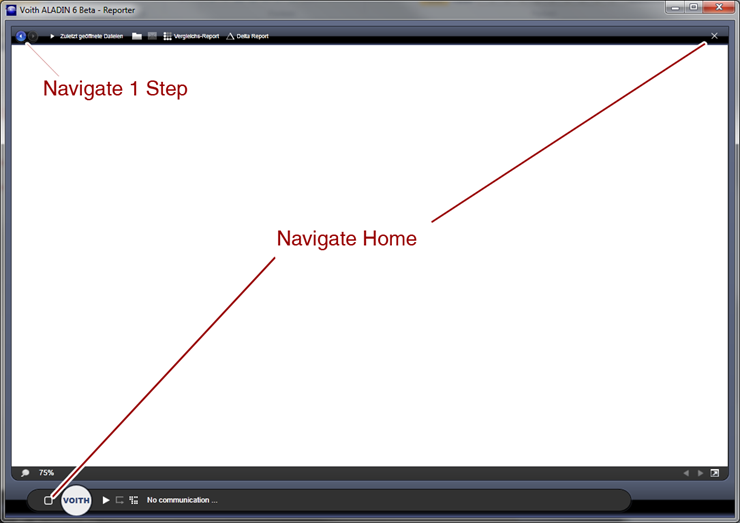
You can go one page forward and backward using the navigation arrows. There are also two Home buttons. They take you immediately back to the start view.
You can navigate to all ALADIN functions via the start page.
- Upload - Reads all diagnostics data from a controller.
- Download - Carries out a software update on a controller.
- Reporting - Visualizes the diagnostics data
- Service - Various functions for creating datasets, tests and analysis
- Settings - Configures ALADIN and the communication with the controller to your needs.
The round Voith ball indicates whether communication is established with the vehicle. When the ball lights green there is a connection to the vehicle. Clicking on the ball provides additional information on the current ECU.
The button for starting and stopping the communication is next to the Voith ball. Please note that a Voith interface is required for the communication.
