
Service - Driver display test
The Driver display test is used for matching and checking between the fault entries in the transmission controller and the display on the dashboard.
During operation, the transmission controller registers the fault entries in the event memory as a DM1 CAN message on the dashboard. Which fault entries are registered with which priority is determined during the vehicle development.
In order to check agreement between the transmission controller and the dashboard, fault entries can be simulated and/or sent as DM1 with the Driver display test.
Valid platforms:
- DIWA.5
- DIWA.6 via KWP
- DIWA.6 via UDS
How to open the Driver display test
The Driver display test is accessed via the Service group in the main window. Then select the "Driver display test" button in the Service menu.
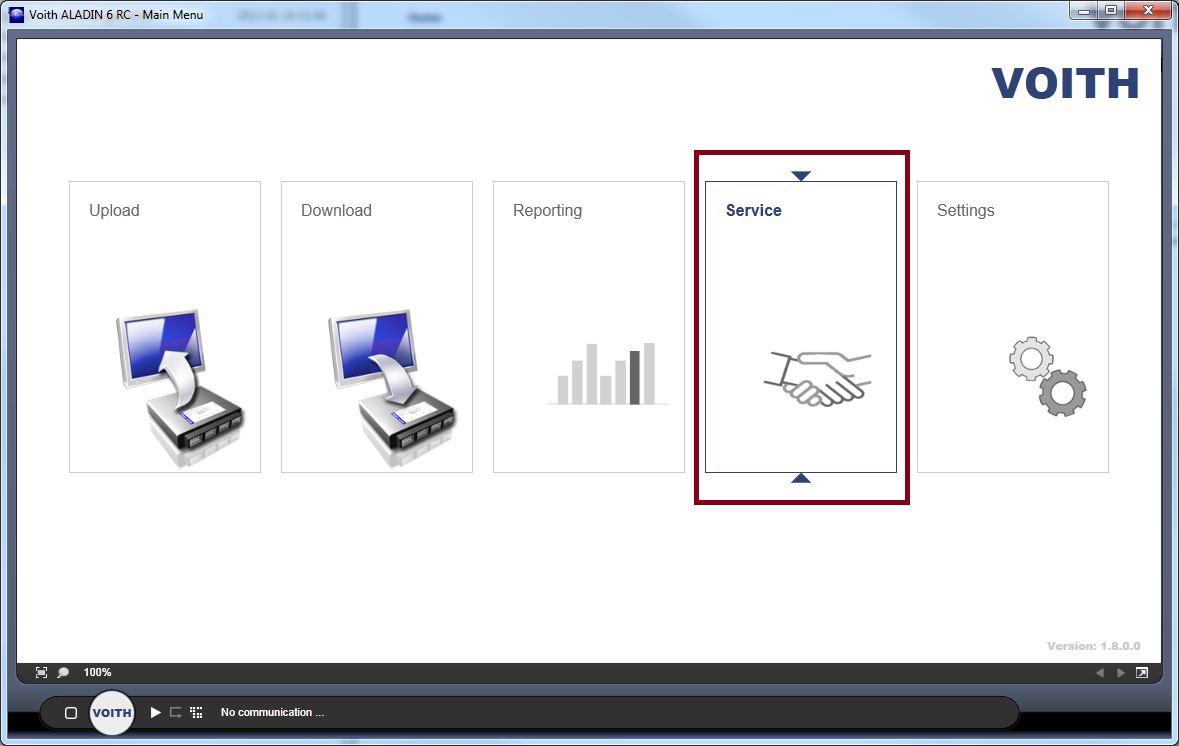

The Driver display test is also available without a connected ECU. Test data can be processed and prepared offline.

Carrying out a display test
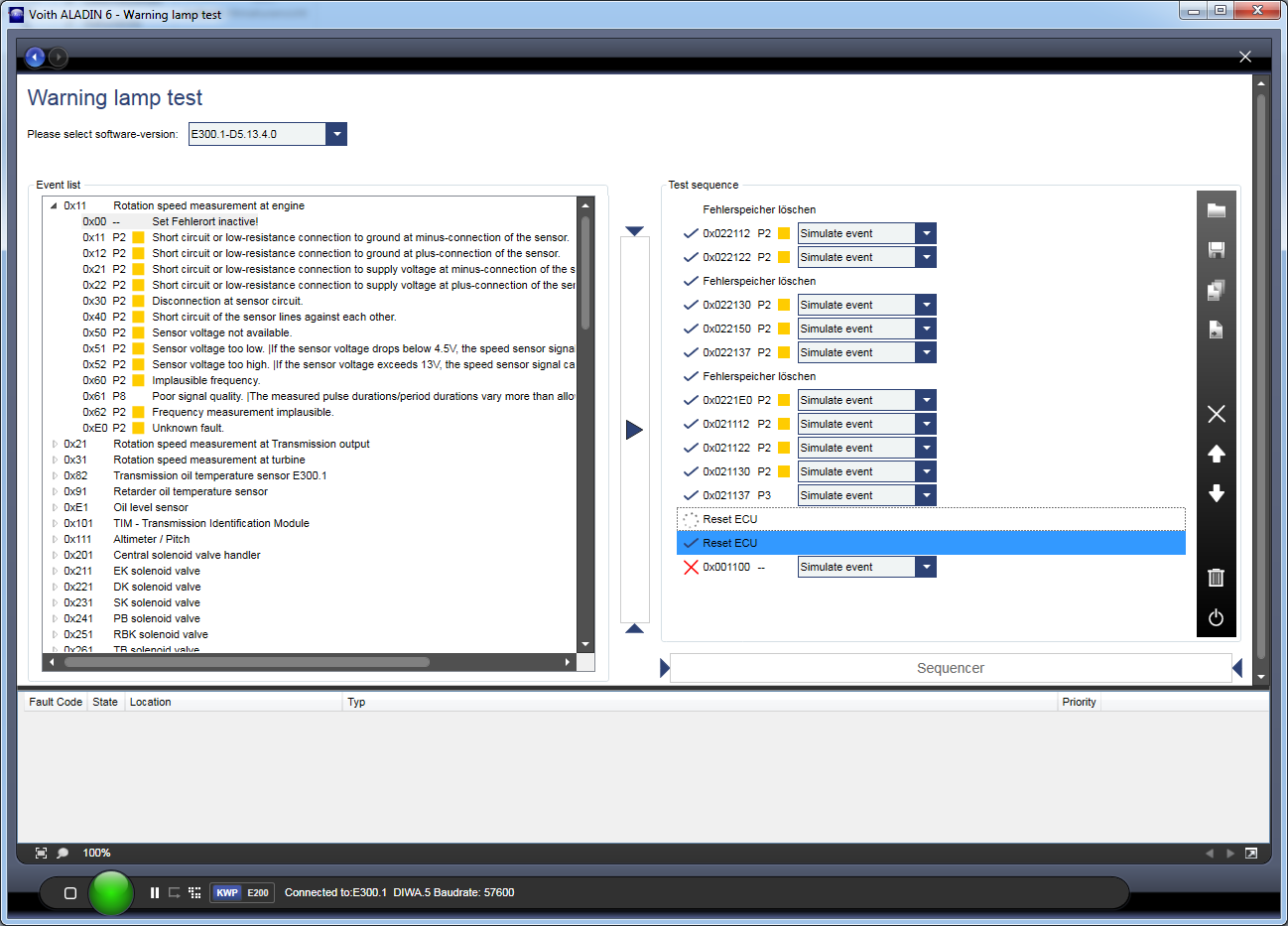
For a Driver display test, you create a test sequence from a list of all possible faults in the transmission controller. The test sequence can then be processed in steps and the result checked on the dashboard.
The list of all possible faults is shown in Block 1. The test sequence is created in Block 2. In Block 3 you can see all current entries in the simulated fault memory of the transmission controller.

In the first step you need the list of possible faults. The fault list is generated from the Event tab. You can select this using the combobox. The fault list contains a list of all fault locations and the associated fault types.

In the second step you transfer the required entries from the fault list into the sequence list. To do so, mark the required fault entry and press the "Enter" key or the button between the two lists.
Alternatively, you can also use drag and drop to transfer entries into the sequence list.

For complex sequence lists, it is possible to select the faults using the context menu. To do so, right-click the required fault location. The context menu includes the option of transferring all fault types into the sequence list. You can also filter faults during the transfer.

For each fault entry in the sequence list, you can decide whether the fault is simulated in the transmission controller or whether the transmission controller is instructed to directly send a DM1 message.
If the fault is simulated. The transmission controller creates the DM1 message based on its own logic, i.e. it is decided whether a DM1 is generated at all, and if yes, in which form for a fault of this priority or fault type.
The fault simulation is the default setting as soon as you record a fault in the sequence list.
If you suspect the transmission controller is not generating the DM1 correctly from a fault, you can send the DM1 directly. To do so, switch to "Send DM1". The lamp status and the source address must also be configured.

| Symbol | Description |
 |
You can load a complete sequencer list here. |
 |
Saves a sequencer list |
 |
Deletes the entire list |
 |
Creates an Excel table with all entered sequencers. The table is used as the basic framework of a protocol file. |
 |
Deletes the currently marked entry. Alternatively, you can also delete individual entries using the "Del" key. |
 |
Shifts the currently marked entry up by one place in the sequencer list. Alternatively, you can also sort in the sequencer list using drag and drop. |
 |
Shifts the currently marked entry down by one place in the sequencer list. Alternatively, you can also sort in the sequencer list using drag and drop. |
 |
Generates a "Clear fault memory" entry in the sequence. |
 |
Generates an "ECU Reset entry" in the sequence. |
Double-clicking a sequence entry sends the corresponding command to the transmission controller. The command is also sent to the transmission controller using the Sequencer button. The next entry in the sequence list is also marked.
You can issue any number of sequence commands. They are then processed in the corresponding order.
| Symbol | Description |
 |
Sequence command is currently being processed |
 |
Command has been successfully processed by the transmission controller. |
 |
Command could not be successfully processed. |