K-line interfaces for connecting the vehicle and the PC
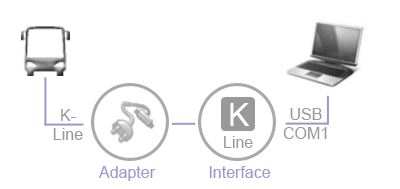
| A K-line interface (level converter) is required for connecting the vehicle to the PC (ALADIN). It is available both with a USB interface and with a RS232 (COM1) port. Their is also a bluetooth interface available. Depending on the vehicle type, you might need an adapter connector in the vehicle. Once you have installed ALADIN and connected the interface, your diagnostic system is ready for operation. |
 |
Always install ALADIN first before connecting the K-line interface to the USB port or the serial interface of your PC. |
 |
ALADIN default configuration is communication via RS232 interface at COM1. |
|
|
K-line interface with a serial RS232 (COM) interface |
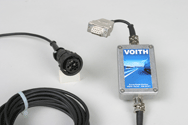
The K-line interface with the RS232 interface is compatible with the transmission control units E200, E300, E300.1 and the diagnostic software tools DIWAgnosis, DIANA and ALADIN. You can order the K-line interface with a serial interface under the order no.: 151.00152911.
|
|
How to connect the K-line interface with a serial RS232 interface: |
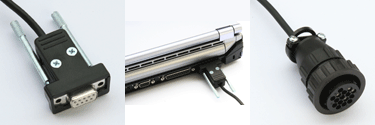
Turn your PC off. Connect the serial RS232 connector (image to the left) to the serial port on your PC (image in the center). Always use the serial port COM1. This requirement is met automatically in PCs with only one serial port. Connect the diagnostic connector (image to the right) to the diagnostic port in the vehicle. Depending on the vehicle, you might need an adapter connector.
If your PC is not equipped with a serial interface, always use the K-line interface with a USB interface. We do not recommend using PCMCIA extension cards. For further information on adapter connectors, please see: Adapter
|
|
K-line USB interface |
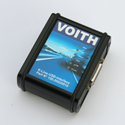
The K-line USB interface is compatible with the transmission control units E300, E300.1 and the diagnostic software tools DIANA and ALADIN. All connections of the USB interface are protected against wrong polarity connection. Power is supplied via the USB port. An additional power supply unit is not required. You can order the K-line USB interface under the
order no.: 151.00202110.
|
|
How to connect the K-line interface with a USB interface: |
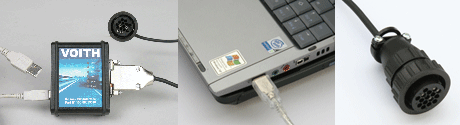
First of all, install ALADIN. Turn your PC off. Connect the USB cable and the diagnostic cable to the K-line USB interface (image to the left). Connect the USB cable to a free USB port on your PC (image in the center). Connect the diagnostic connector (image to the right) to the diagnostic port in the vehicle. Depending on the vehicle, you might need an adapter connector. For further information on adapter connectors, please see: Adapter
Once you have connected the K-line USB interface to your PC, install the corresponding Windows driver.
|
|
How to install the driver for the K-line USB interface |
Connect the K-line USB interface to your PC. Turn your PC on. The Windows Hardware Wizard appears automatically.
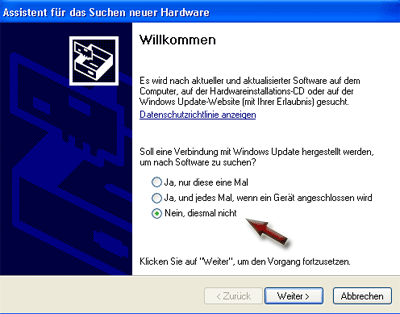
Select the option "No, not this time" and click the "Next" button.
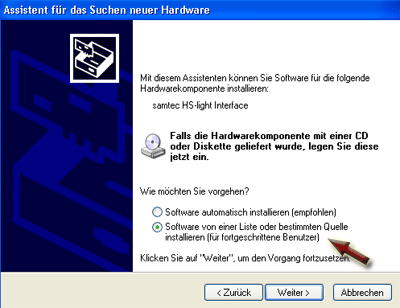
Select the option "Install from a list or specific location" and click the "Next" button.
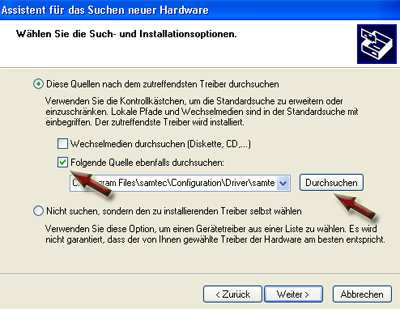
Select the option "Include this location in the search" and click the "Browse" button.
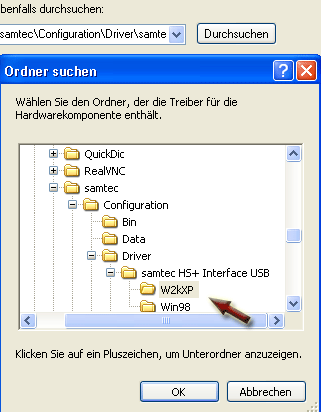
Navigate to the folder: "C:\Program Files\samtec\Configuration\Driver\samtec HS+ Interface USB\W2KXP"
and click "OK". This folder has been created automatically during the ALADIN installation. Then click the "Continue" button.
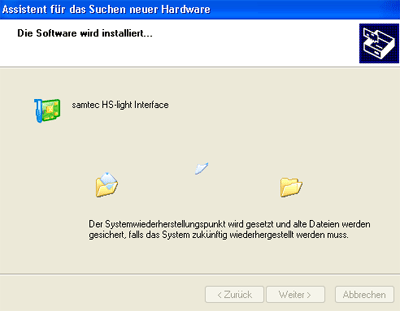
Windows installs the drivers for the K-line USB interface.
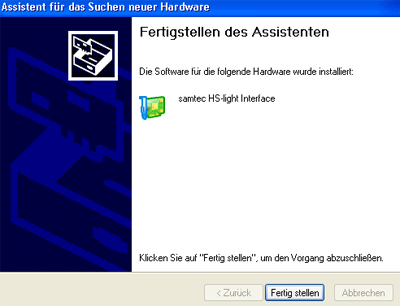
Confirm with "Finish" that the installation is complete. Your vehicle diagnosis system is now ready for operation.
For further information on the K-line interface with a USB interface, please refer to the help for the "HS Light USB" product made by samtec. If you follow this link, please click the "Open" button in the following window "File Download Safety Warning".
 |
Further topics: |
More information on: Getting started
More information on: Adapter
More information on: Standard connector pin assignment
More information on: ALADIN installation
More information on: Program overview
More information on: Deinstalling ALADIN
More information on: FAQ
Up > [Hyperlinkleisten stehen auf dieser Website nicht zur Verfügung]
© by Voith Turbo GmbH & Co. KG
send remarks to joachim.ehleiter@voith.com (electronic department)
or r.theilacker@voith.com (electronic department)