
Upload
The upload reads all data from a connected controller and saves them in a so-called ECU file. An upload can be carried out in four simple steps.
- Start the upload and read the data from the controller
- Optionally clear fault memory
- Optionally delete additional Information
- Save data in the ECU file and generate the report display
Valid platforms:
- DIWA.3 via E200
- DIWA.3 via E310
- DIWA.5
- DIWA.6 via KWP
- DIWA.6 via UDS
- VIAB
- DIWAhybrid E300.1
- DIWAhybrid M300
How to open the upload
Use the "Upload" button in the ALADIN main window to start the upload directly.

ALADIN automatically attempts to start communication with a controller. Once communication is set up, all data are read from the controller.
If the "Multi-ECU Option" is activated in the ALADIN settings, all controllers that belong to the diagnosed project are read. In the case of DIWAhybrid, for example, an E300.1 and an M300 are read.
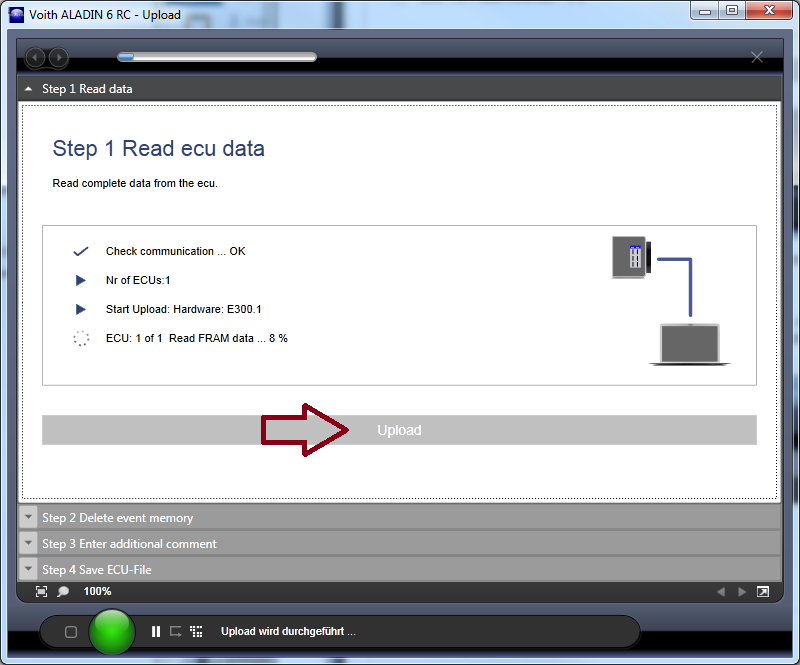
If the upload stops for any reason, the reading process can be restarted using the "Upload" button.
Clearing the fault memory
When reading is complete, the number of entries in the fault memory is displayed.

The fault memory is cleared using the "Clear" button. This step can also be skipped using the "Continue" button. The fault memory is then not cleared.
If the filter is active for the display and the display indicates no faults, the fault memory is always automatically cleared.
Entering additional information
In the following step, you have the option to include additional information in the ECU file. The operating hours as per the tachometer and an additional optional comment can be entered here.
Both specifications are optional.

Saving the ECU file
In the last step, the read data are stored in an ECU file.
The display in ALADIN is dependent on your user level.
As a Voith employee, you will see the view on the left. A file name is recommended that consists of the operator, bus number, transmission serial number and operating hours. The operating hours always originate from the operating data.
If you want the operating hours based on the tachometer as the file name, you must enter it again here.
The specification of the time is optional. ALADIN notes your last selection with regard to the time.
An underscore and the "Space Hyphen Space" string are available as the separator between the individual areas. This behavior can be determined in the ALADIN settings.
Non-Voith employees will see the display on the right. A file name that consists of the "Upload" + Date + Time is recommended.
".ecu" is always used as the file extension.

After pressing the "Save" button, the "Save as" dialog opens.
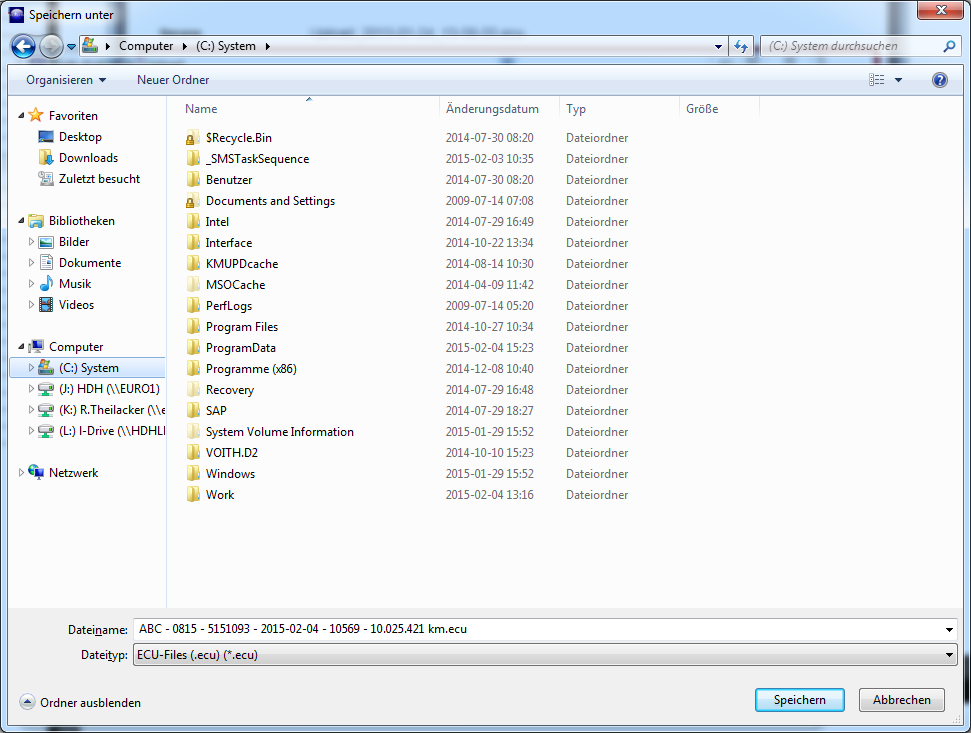
In the dialog, you can change the save location and also the file name if required. The naming from ALADIN is simply a recommendation.
To select an existing file name, there are two options in ALADIN.
- The existing ECU file is overwritten. This deletes all old data.
- ALADIN can append the upload to an existing ECU file. Several uploads can be stored in an ECU file.
When an upload is complete, the report for the data analysis is created automatically.